Budgets, goals and recurring payments in Money Trackrr – how to use them
Recording expenses is only half the job. The other half is a plan: how much you want to spend, what you are saving for and which bills are coming this month. Here is how to set it up in three windows.

A list of expenses tells you what happened. Budgets, goals and recurring payments tell you what will happen – and let you react before the money runs out. These three windows are part of the "Planner" and "Full" layouts. If you do not see them, turn them on in ⚙️ → "Window layout" → "Edit".
Budgets: a limit for a group of expenses
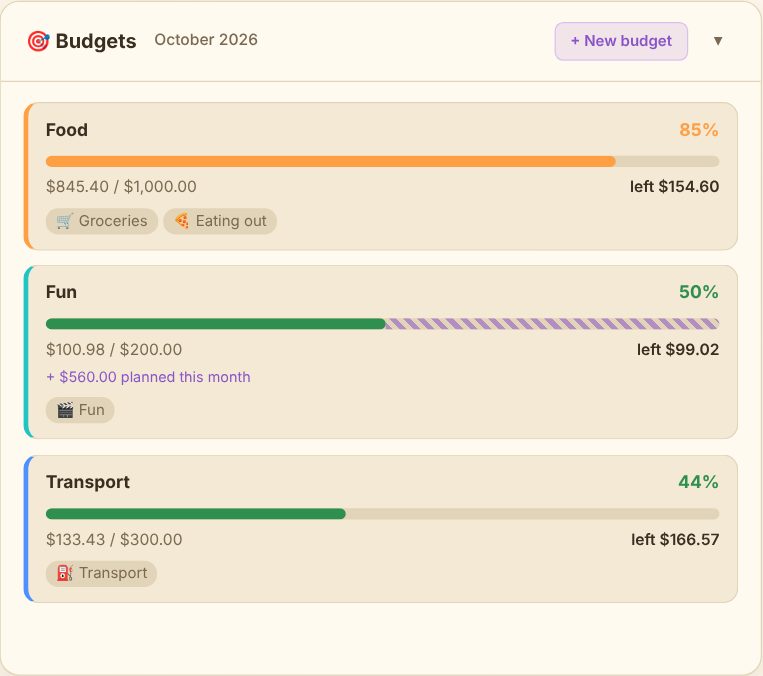
A budget is a monthly limit for one or more categories. For example, "Food" can include both groceries and eating out.
How to add a budget:
- In the "🎯 Budgets" window click "+ New budget".
- Give it a name and a colour.
- Enter a monthly limit.
- Select the expense categories that should count towards it. The list comes from your own categories, so the budget tracks real spending – nothing to retype.
How to read the progress bar:
- The bar shows how much you have spent and how much is left until the end of the month.
- At 80% of the limit the bar turns orange – a signal to slow down.
- Above 100% it turns red.
- Expenses planned for this month appear as a separate striped part of the bar with the note "planned this month". That way you know whether you will stay within the limit before you pay.
How to set a sensible limit? Start with what you spend now. The "📊 Average spending" window shows your average monthly spending in selected categories over a chosen date range – for example the last three months. Set the limit 5–10% below that average. An overly ambitious budget quickly "breaks" and discourages you. It is better to lower it gradually month by month.
Savings goals: what you are saving for
A goal is an amount you want to collect – for a holiday, a new laptop, an emergency fund or a deposit on a flat.
How to add a goal:
- In the "🐷 Savings goals" window click "+ New goal".
- Choose a name, colour and icon.
- Enter the goal amount.
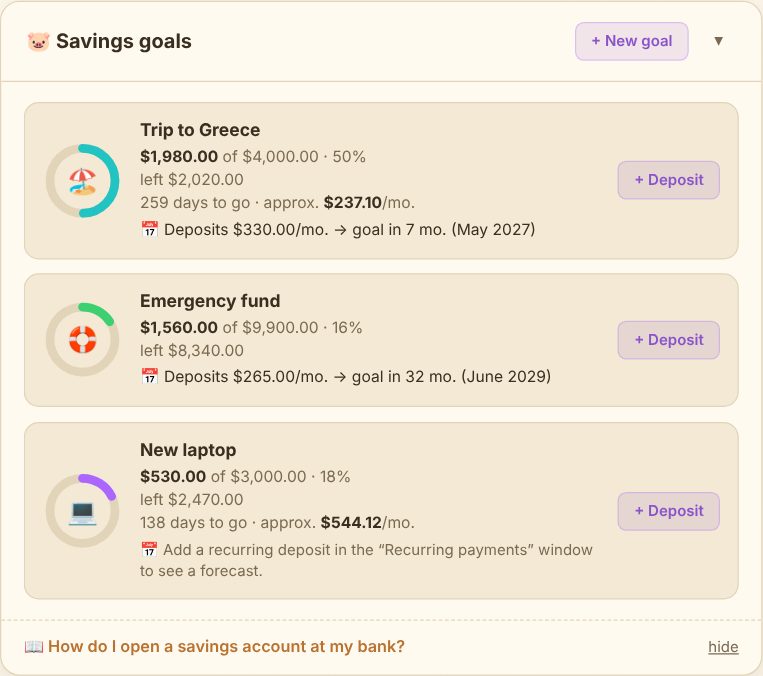
- Optionally set a deadline – the app then calculates how much you need to save each month to make it.
- Optionally choose the account where you keep this money (e.g. a savings account). Deposits will go there by default.
Deposits: the "+ Deposit" button next to a goal opens the deposit window. You can tick "Deduct from balance" – the deposit is then recorded as an expense in the "Savings" category, and your balance shows what you really have available to spend. This matters: money you have put aside should not "pretend" to be spendable.
For each goal you see a progress ring, how much is left, how many days until the deadline and how much you need to save per month. If you set up a recurring deposit (see below), you also get a forecast, e.g. "Deposits 500/month → goal in 6 months".
Recurring payments: bills, subscriptions and salary
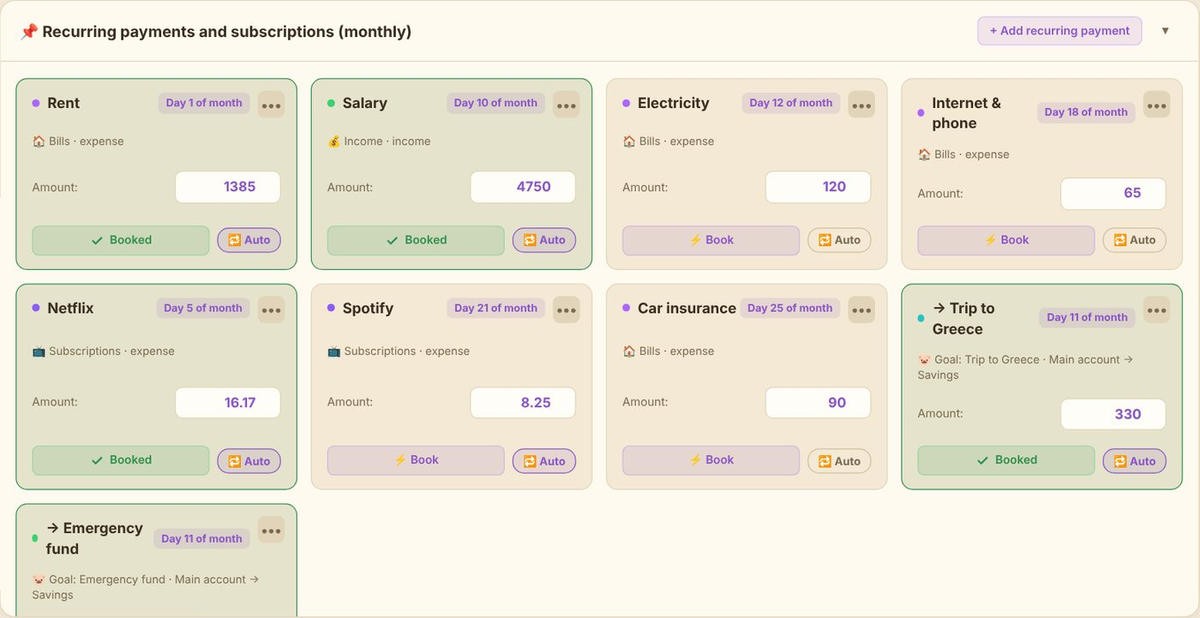
Rent, electricity, phone, Netflix – and your salary – are amounts that appear every month on roughly the same day. Instead of entering them by hand each month, add them once in the "📌 Recurring payments and subscriptions" window.
How to add a recurring payment:
- Click "+ Add recurring payment".
- Enter a name (e.g. Rent), a default amount and the day of the month you usually pay.
- Choose the type: a payment or income (an ordinary bill or inflow) or "Goal deposit" (automatic saving towards a chosen goal).
- Choose a category and, if you have several accounts, the account you pay from.
- Tick "Auto" if the payment should book itself on the due date.
How it works day to day: each payment has a "Book" button for the current month. Clicking it adds it to your transactions with the right amount and date, and the tile changes to "Booked". If the amount is different this month (say, a higher electricity bill), just correct it in the tile before booking.
Payments that are due soon or overdue appear at the top of the page as "Upcoming payments", so nothing slips past you.
Accounts and transfers
If you keep money in several places – a main account, a savings account, cash – add them in the "👛 Accounts" window (with an opening balance). The "⇄ Transfer" button moves money between accounts without recording it as an expense. A recurring "Goal deposit" can move money from your main account to your savings account every month.
Putting it together into a simple system
A proven setup to start with:
- Add your salary and all fixed bills as recurring payments. You immediately see how much is left "to live on".
- Set 2–4 budgets for the categories that are hardest to control (usually food, entertainment, transport, shopping).
- Add one goal – ideally an emergency fund – and a recurring deposit to it on payday. Pay yourself first, then spend.
- Check the budget bars once a week. An orange bar in the middle of the month is a sign to slow down.
- At the end of the month compare the plan with reality and adjust the limits for next month.
And if you miss something, Penny will usually notice it for you. More about her in a separate guide.