How to install Money Trackrr as an app – computer, Android, iPhone (and what about Firefox and Zen)
You can have Money Trackrr as a separate app with its own icon on your desktop or phone screen – no app store, in 30 seconds. Here are the steps for every browser.
Money Trackrr is a so-called PWA (Progressive Web App). It is a website that your browser can "install" like a regular program. What do you get?
- Its own icon on your desktop, in the Start menu or on your phone's home screen.
- A separate window without the address bar and tabs – it looks and works like an app.
- Offline use – you can add an expense without internet.
- A faster start – one click instead of typing the address.
Installing downloads nothing from an app store, needs no account and takes a few dozen kilobytes. The app updates itself.
Computer: Chrome, Edge, Brave, Opera, Vivaldi
These browsers (all based on Chromium) support installation best.
- Go to moneytrackrr.app.
- An install icon (a monitor with an arrow, or a ⊕ sign) appears on the right side of the address bar. Click it.
- In the "Install app?" box, click "Install".
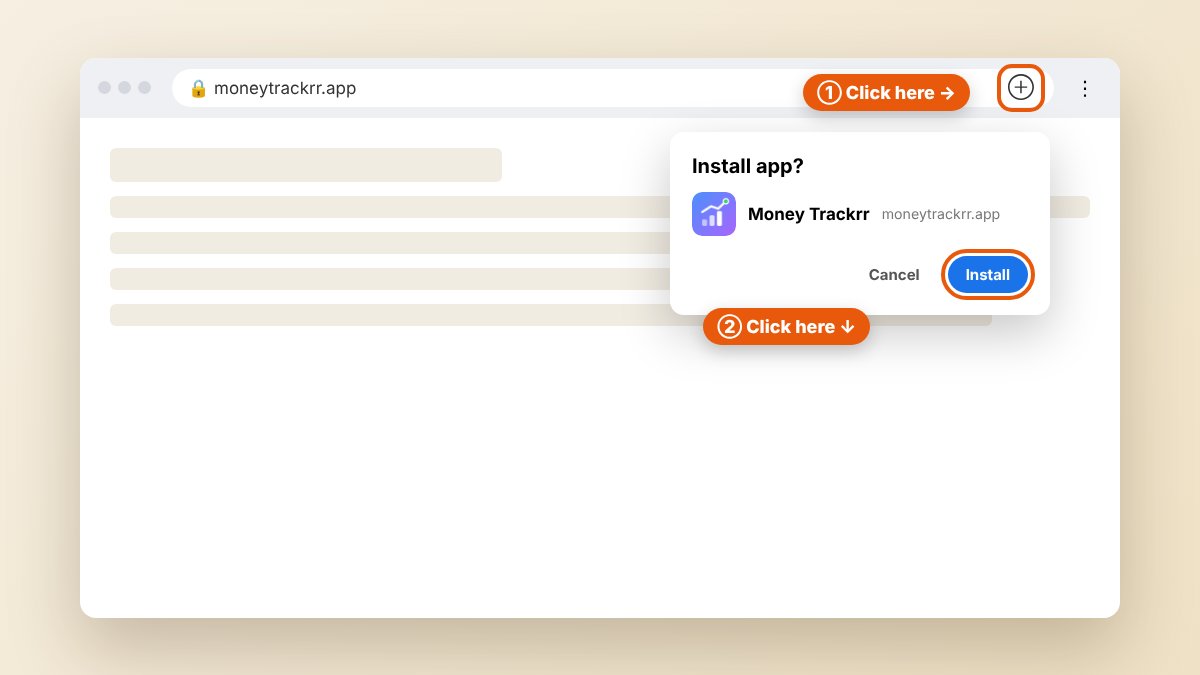
Cannot see the icon? Open the browser menu (⋮ or …) and look for an option with the word "Install" – in Chrome usually under "Cast, save and share", in Edge under "Apps". You can also click the 📲 button in the Money Trackrr header – it appears when your browser allows installation.
After installing, Money Trackrr opens in its own window and its icon appears in the Start menu (Windows), Launchpad (macOS) or the applications menu (Linux).
Android
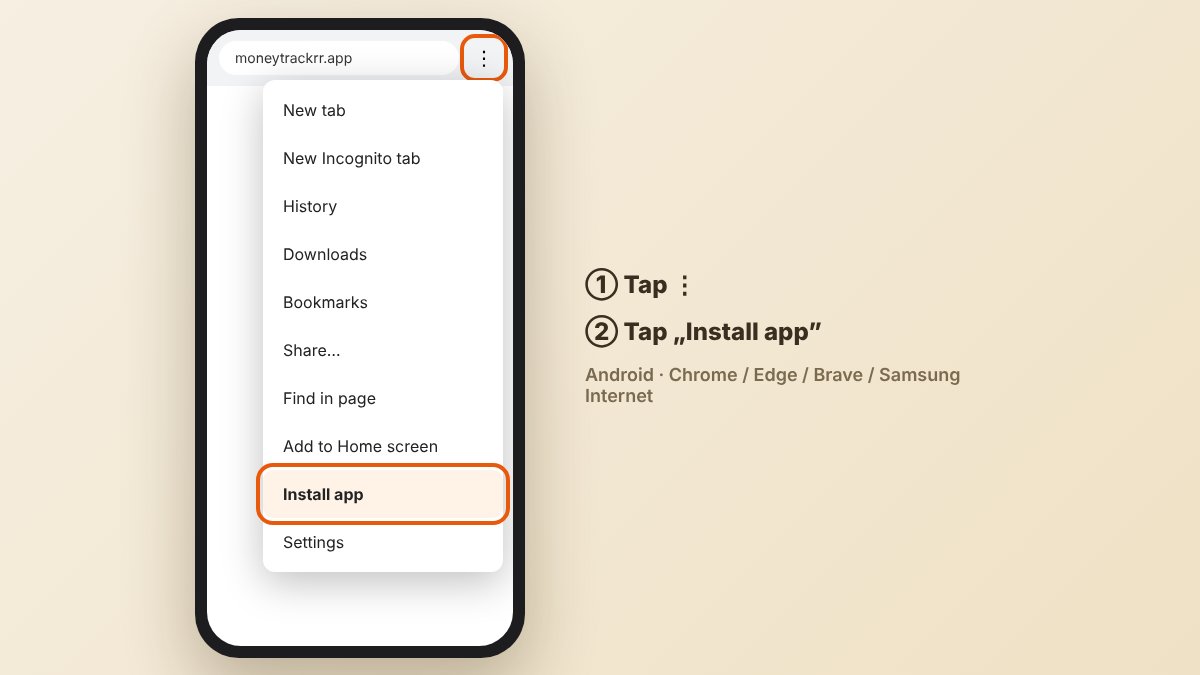
- Open moneytrackrr.app in Chrome (Edge, Brave and Samsung Internet work too).
- Tap the ⋮ menu in the top right corner.
- Choose "Install app" or "Add to Home screen" (the name depends on the browser version).
- Confirm with "Install".
iPhone and iPad
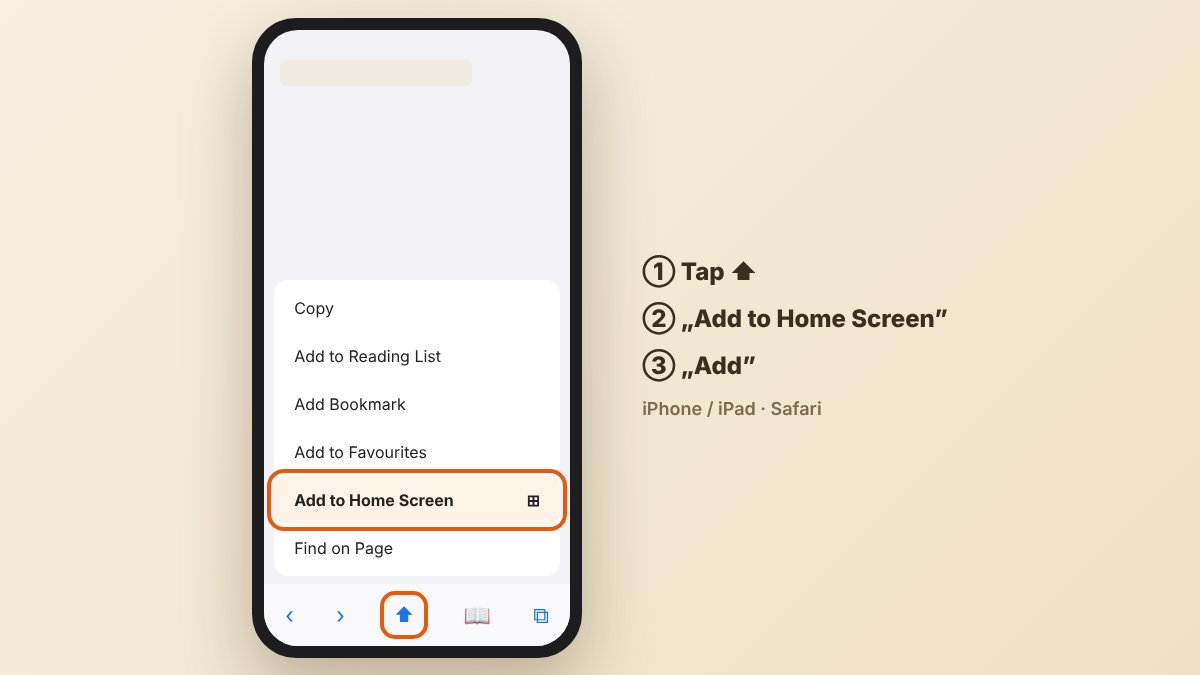
- Open moneytrackrr.app in Safari.
- Tap the Share button – a square with an upward arrow, on the bottom bar.
- Scroll the list and choose "Add to Home Screen".
- Tap "Add" in the top right corner.
On newer iOS versions the same option is also in the share menu of Chrome and other browsers.
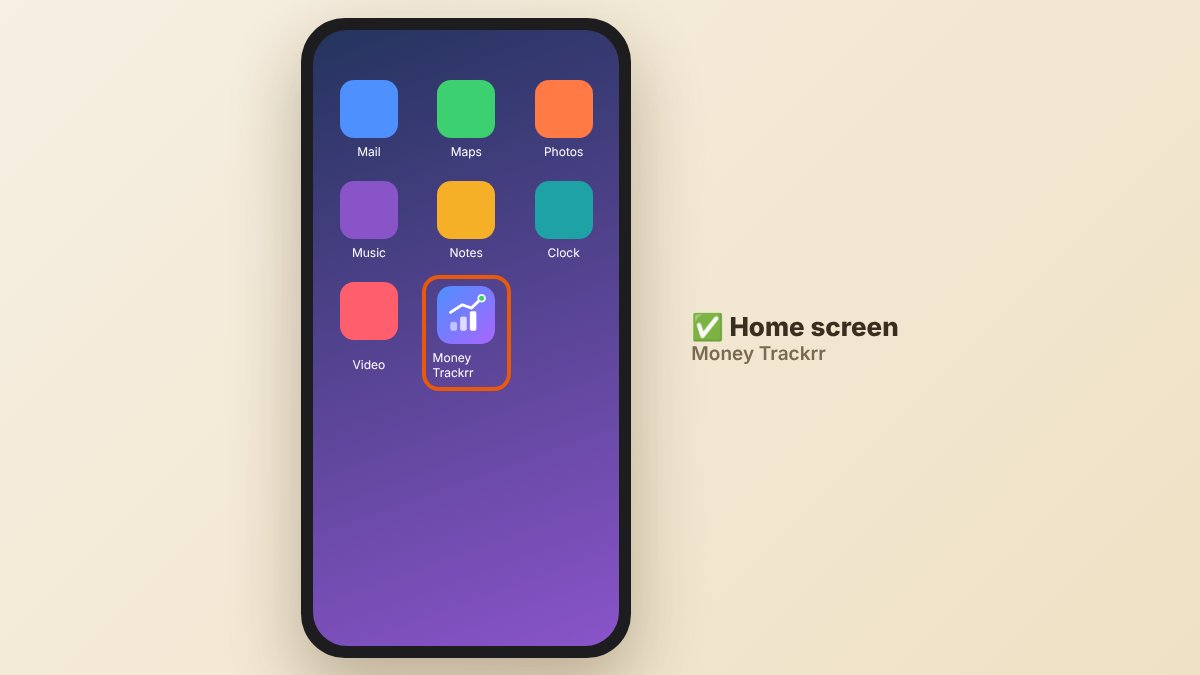
Done – the Money Trackrr icon appears among your apps.
Firefox, Zen and other Firefox-based browsers
Let us be honest here: on desktop, Firefox and the browsers based on it (Zen, LibreWolf, Floorp) mostly cannot install PWAs.
- Firefox on Windows (version 143 and later) has a "web apps" feature: a web app button appears in the address bar – click it and the site is added to your taskbar and Start menu.
- Firefox on macOS and Linux, and Zen – there is no such feature yet. Mozilla says it may come in the future.
What you can do instead:
- Pin the tab. In Zen, drag Money Trackrr into the Essentials section (or right-click the tab and pin it) – it will always be at hand, like an app.
- Add a bookmark to your bookmarks bar – one click and you are in.
- Use a Chromium-based browser just for Money Trackrr – such as Chromium, Brave or Edge – and install it as an app following the steps above.
The good news: offline mode works without installing too. After your first visit, Money Trackrr is saved in your browser and will open in Zen or Firefox even when you lose your connection.
Important: data and installation
The installed app uses the data of the same browser you installed it from. If you have been using Money Trackrr in, say, Zen and you install it in Chrome, your transactions will not move over by themselves – transfer them with a backup:
- In the old browser: 💾 → "Download data (JSON)".
- In the installed app: 💾 → "Load data (JSON)" and choose the file.
Loading a backup replaces the data in the new place, so do it right after installing, before you enter anything.
How to uninstall
- Computer: open the app, click the ⋮ menu in its window and choose "Uninstall".
- Android: press and hold the icon and choose "Uninstall", or drag it to the bin.
- iPhone: press and hold the icon and choose "Remove App".
Remember that uninstalling may also delete saved data – download a backup first.
In short
- Chrome, Edge, Brave (computer and Android): the install icon in the address bar or ⋮ menu → "Install".
- iPhone: Safari → Share → "Add to Home Screen".
- Firefox on Windows: the web app button in the address bar. Zen and Firefox on Linux/macOS: pin the tab – offline works anyway.
- After installing in a different browser, move your data with a backup 💾.
The illustrations are schematic – menus may look slightly different depending on your browser and system version.