Getting started with Money Trackrr: set up in 5 minutes
New to Money Trackrr? This guide takes you from the first launch to your first saved transaction – including currency, theme and window layout.

Money Trackrr is a free personal finance tool that runs entirely in your browser. You do not need an account, you do not give your e-mail and you do not connect to your bank. Everything you enter stays on your device.
Step 1: The setup wizard
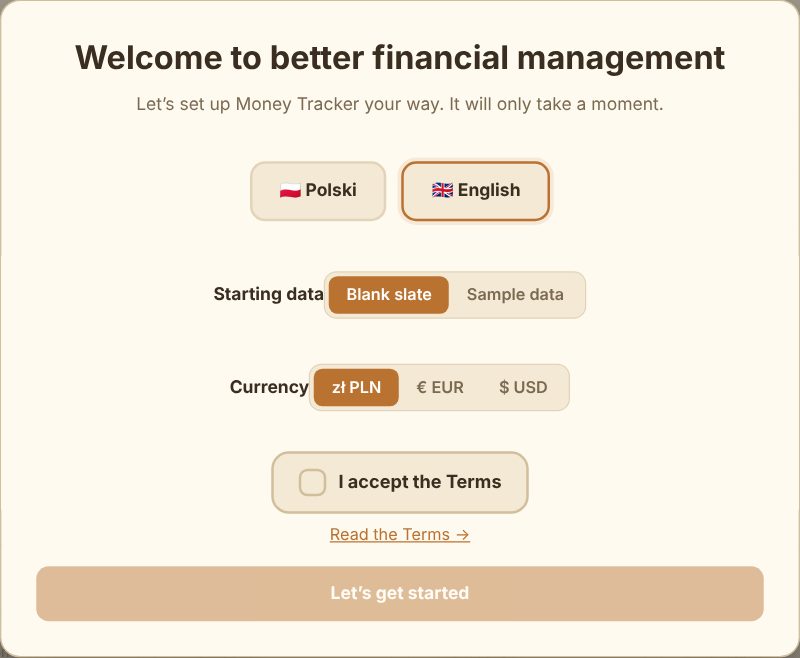
The first time you open the 💰 tracker tab, a short wizard appears. On the first screen you choose:
- Language – Polish or English (you can change it at any time in the global settings 🌐).
- Starting data – "Blank slate" if you want to start from scratch, or "Sample data" if you would rather look around a ready-made example first.
- Currency – złoty, euro or US dollar. You can always convert your amounts later at the NBP exchange rate.
Finally you accept the terms and click "Let's get started".
Step 2: Theme
On the second screen you choose the look: light, cream, dark or midnight, plus an accent colour. It is purely cosmetic – you can change it in the global settings.
Step 3: Window layout
Money Trackrr is made of windows: summary, calendar, transactions, budgets, goals, recurring payments, charts, average spending and accounts. Not everyone needs all of them, so there are three ready-made layouts to start with:
- Simple – just the summary, adding transactions, the list and the calendar.
- Planner (recommended) – plus budgets, goals and recurring payments.
- Full – everything, including charts, averages and accounts.
After choosing a layout you can adjust it: drag a tile (on a phone, by its ⠿ handle), reorder with the arrows, set the width to full or half, or hide a window 🙈. You can return to the editor at any time via ⚙️ → "Window layout" → "Edit".
Step 4: The tour with Penny
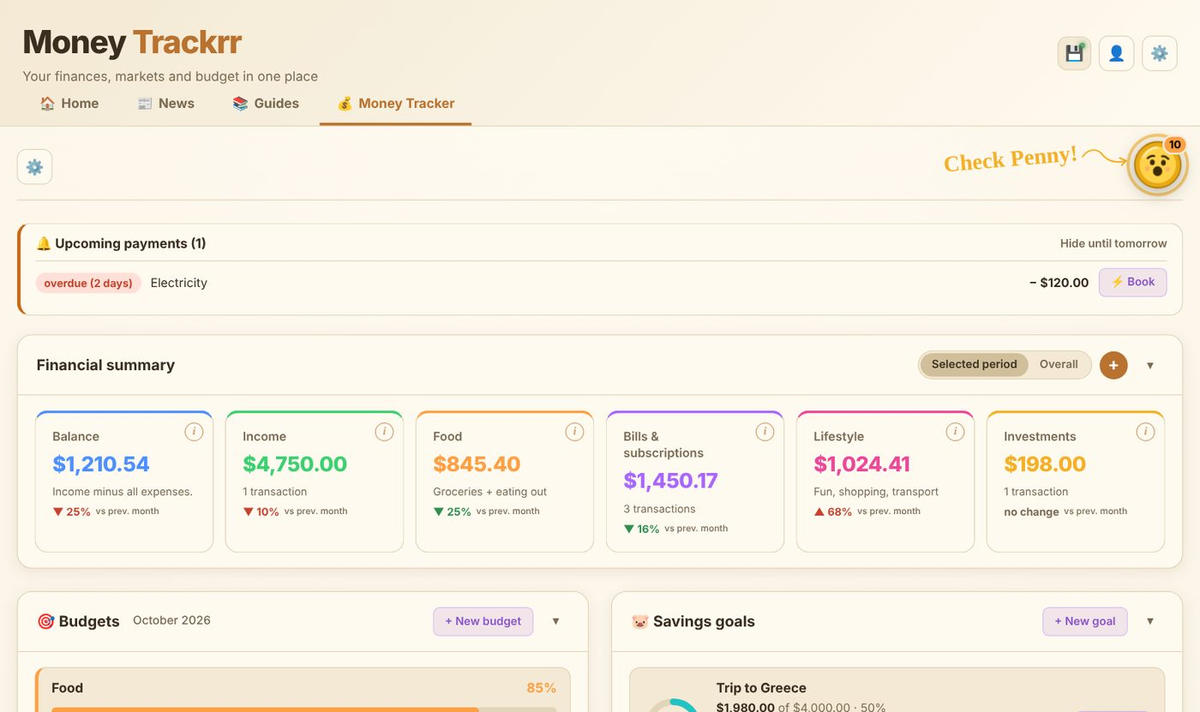
After setup the app offers a short tour. Penny – a little coin who lives in the corner of the screen – shows you the most important places one by one. The tour runs on sample data, so you cannot break anything, and when it ends you are back with your own data. You can run it again from the settings (⚙️ → "Start the tour").
Step 5: Your first transaction
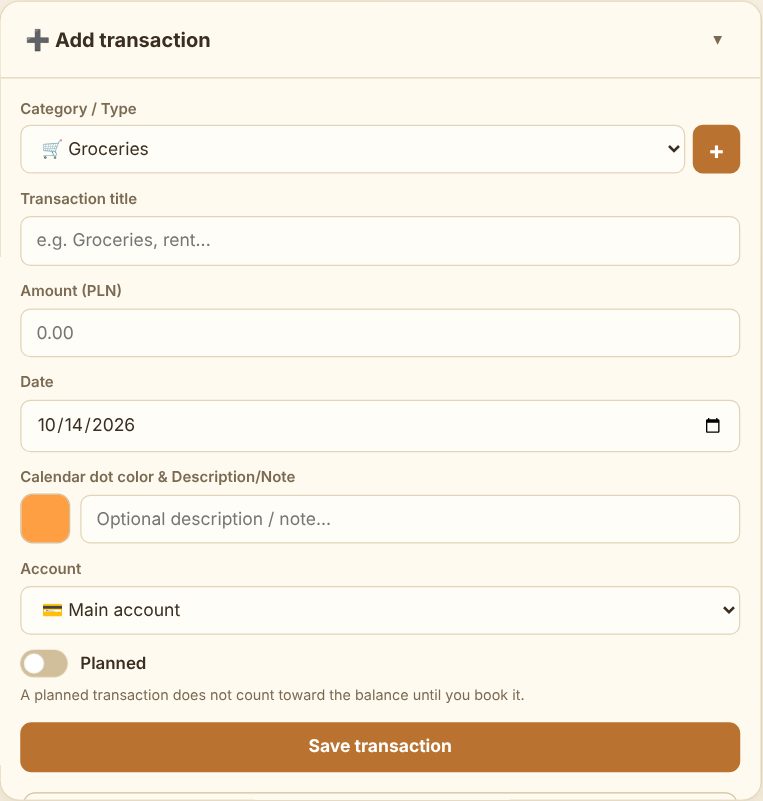
In the "➕ Add transaction" window:
- Choose a category (e.g. Groceries, Salary, Rent). The "+" button next to it lets you add your own.
- Enter a title and an amount.
- Check the date – today by default.
- Optionally pick a dot colour for the calendar and add a note.
- If you have several accounts, choose the right one.
- Click "Save transaction".
The "Planned" switch is useful for future expenses – a trip in two weeks, for example. A planned transaction shows up in the calendar and in budgets, but it does not reduce your balance until you book it.
On a phone, instead of the add window you get a floating "+" button in the bottom right corner.
Step 6: Calendar and transaction list
Every transaction appears:
- in the calendar as a coloured dot (or, if you prefer, as a line with its title; change it in ⚙️ → "Calendar"),
- in the transaction list, grouped by day, with a total for each day.
Click a day in the calendar to select it; the (i) button opens details and editing. The "Day / Month / Year" buttons switch the calendar view, and the arrows take you to the previous or next period. In the list you can search titles and notes and filter income, expenses and planned transactions.
Already have history at your bank? CSV import
You do not have to retype everything. Below the transaction list there is an "📥 Import bank statement (CSV)" button. Most banks let you download your account history as a CSV file. Money Trackrr tries to recognise the date, description and amount columns automatically and matches categories based on your earlier entries. Before saving you see a preview and can correct the column mapping.
A few good habits to start with
- Record expenses straight away – ideally at the till or the same evening. After a week nobody remembers small purchases.
- Do not overdo categories. 8–12 categories are enough. Too many make it harder to draw conclusions.
- Look at the summary once a week. Five minutes is enough to see whether everything is going to plan.
- Download a backup 💾 every now and then. Your data lives only in your browser – more on that in the backup guide.
Done! The next step is setting up budgets, goals and recurring payments – covered in a separate guide.